Which part of the alarm failed?
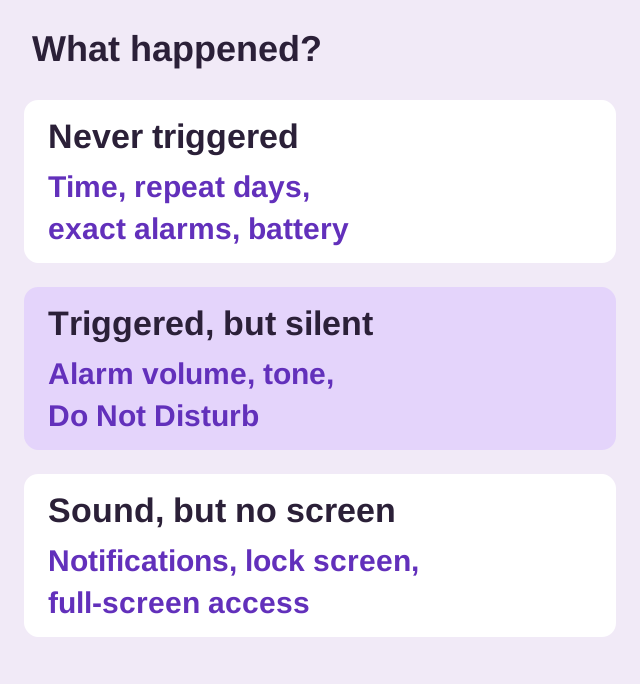
- Never triggered: check the time and repeat days, applicable exact-alarm access, then background restrictions.
- Triggered, but silent: check Alarm volume, the sound and DND allowances.
- Sound, but no ringing screen: check the notification and full-screen controls.
Find the problem before changing settings
Open BlockWake and confirm the alarm is enabled, scheduled for the right AM/PM time and repeat days, and not covered by Skip today. That command cancels the remaining alarms and snoozes for this day while preserving the repeating schedule. If the time is right, distinguish a silent ring from a missed trigger or a hidden screen. Each points to a different setting.
BlockWake provides reliability guidance for relevant Android and device settings, but the phone controls whether access is granted. See how BlockWake approaches Android alarm reliability for the product-specific overview.
1. Check Alarm volume and the chosen sound
Google's sound-settings instructions distinguish Alarm volume from Media, Ring and Notification levels. Turning up a video does not necessarily make the alarm louder.
Locate the Alarm slider in your sound settings or alarm app and choose a level you can hear from bed. Preview the selected tone. In Google Clock, the sound and gradual-volume controls are described in the Clock settings guide. If the alarm starts quietly, listen long enough to assess any gradual increase.
For a ring that is audible but faint, follow the quiet-alarm guide. If its saved level keeps dropping, use the volume-change checks.
Check overnight sound modes, too
Android DND can block alarms. Check whether the active mode allows them; Google documents this under Alarms & other interruptions. Our DND guide walks through the distinction. Some clock apps also link alarm behavior to system sound mode; the silent-mode guide covers Samsung's documented Clock option.
2. Check exact-alarm access when requested
An exact alarm is scheduled for a precise time. On Android 12 and newer, many exact-alarm APIs require appropriate Alarms & reminders access. Permission types differ: some are granted automatically, so a manual toggle is not required for every alarm app.
For many fresh installs on Android 14, the user-granted SCHEDULE_EXACT_ALARM permission is not pre-granted when the app targets Android 13 or higher. If BlockWake requests access or reports it missing, follow the app's prompt or find Apps, Special app access, Alarms & reminders in Settings. Review the schedule again after a phone transfer or permission change.
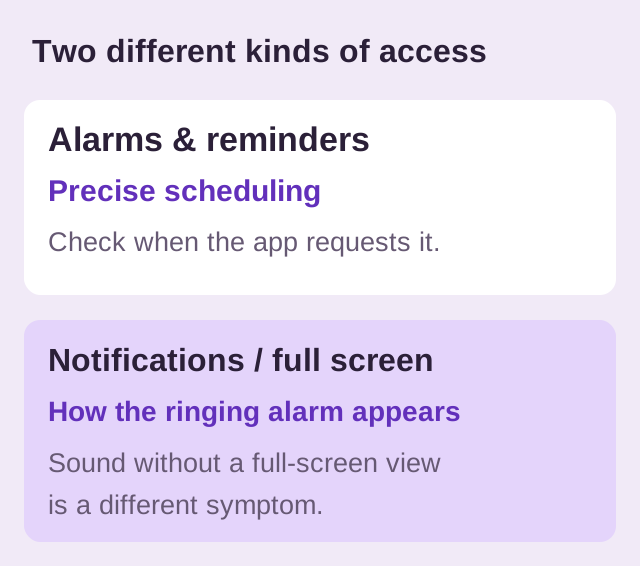
Android says revoking that user-granted permission cancels future exact alarms. See Android's exact-alarm guidance. This permission governs scheduling; it is separate from making the ringing screen visible.
3. Check notifications if the alert is hidden
Android 13 introduced a runtime notification permission for non-exempt notifications. Android 8 and newer also let you change individual notification channels or categories. If the alarm sound is present but the notification is missing or quiet, open Settings → Apps → BlockWake → Notifications and inspect the app permission and alarm category, if shown. These controls affect notification presentation; they are not the same as exact-alarm scheduling or the dedicated Alarm volume.
Android lets users change channel importance, sound and vibration. The labels differ by phone. See Android's notification-permission guidance and notification-channel controls.
4. If it rings but does not open, check full-screen access
Full-screen intent access controls whether a high-priority alarm can open its ringing screen over the lock screen. Android 14 lets users change this access, as described in the Android 14 behavior notes. Without it, the documented fallback can be a heads-up notification with controls rather than a full-screen view; see Android's full-screen intent limits.
A missing full-screen view does not prove the alarm was never scheduled. Check BlockWake's guidance, then the phone's Full-screen notifications or Full-screen intents setting if available. Review its lock-screen notification setting too; labels vary by manufacturer.
5. Review battery and background restrictions
Open the phone's App battery usage or equivalent screen for BlockWake. If it is marked Restricted, review the available background setting and allow normal background operation for an alarm app when your phone provides that choice. Test again with the screen locked. Check Battery Saver separately if it was active when the alarm failed.
Android's App Standby documentation explains that the restricted bucket can limit alarm delivery and that manufacturers can use their own criteria. Exempting an app from one battery control cannot override every system condition, and keeping more apps unrestricted may use more battery.
6. Check controls added by your phone maker
Samsung Galaxy
Under Battery → Background usage limits, see whether BlockWake is in Sleeping or Deep sleeping apps. Samsung says deep sleeping apps do not run in the background. If that is the cause, remove it from those lists and use Never sleeping apps if offered. The path can vary with One UI version. See Samsung's sleeping-app instructions.
Huawei
Huawei's third-party alarm troubleshooting advises allowing Auto-launch, Secondary launch and Run in background under the Launch setting. Follow the controls actually shown on your model; this is Huawei guidance, not a universal Android menu.
Other Android phones
Xiaomi/Redmi/POCO, OPPO/Realme, OnePlus and other manufacturers may use different battery or lock-screen controls. Start with the BlockWake in-app guidance and your model's official support instructions instead of following a menu path copied from another phone. Change one setting at a time and rerun the locked-screen test.
7. Test with the screen locked, then after a restart
- Create a temporary BlockWake alarm a few minutes ahead and verify its time, repeat day and enabled state.
- Lock the phone and leave the app. Use the sound modes and charging position you normally use overnight.
- Note whether it rings, whether a notification or full-screen view appears, and whether your Stop method works.
- Remove the temporary alarm. Restart the phone, open BlockWake, confirm the next scheduled time, and repeat the test if you changed permissions or battery settings.
BlockWake's privacy policy describes restoring eligible alarms after restart, but verify the actual schedule on your device. If the test fails, note the phone model, Android version, app version, battery mode, scheduled time and what you saw. Send those details through the contact page if you need help.
Try BlockWake FreeUse a temporary alarm to check your Android setup.
Quick answers
Does a missing full-screen view mean the alarm never fired?
No. The phone may show a notification instead. Check whether sound or a lock-screen alert appeared, then review full-screen access.
Should I enable every permission and battery exemption?
Check the settings relevant to the symptom and the prompts BlockWake shows on your device. Exact-alarm permissions differ by Android version and app implementation; broad changes are not a substitute for a locked-screen test.
Can adding more alarms fix a blocked alarm?
No. Fix the sound, scheduling or background condition first. Alarm Sets organize multiple times; they do not override device restrictions.